

Log in to cPanel
- Access your hosting account and open cPanel.
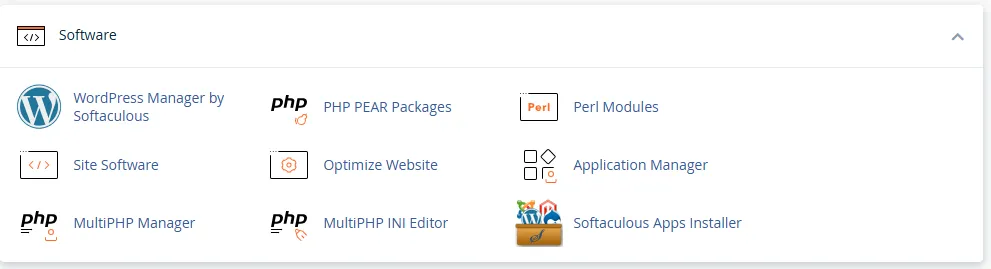
Open MultiPHP Manager
- Under the Software section, click MultiPHP Manager.
Select Your Website
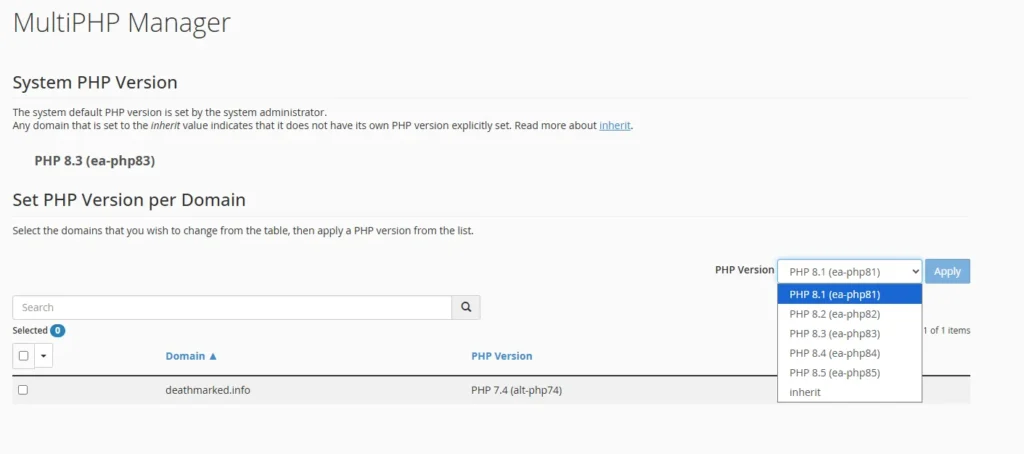
- Locate your domain or subdomain from the list.
- Check the box beside the website you want to update.
Choose the New PHP Version
- Find the PHP Version dropdown at the top-right.
- Select the latest PHP version supported by your website and plugins.
- For example: PHP 8.3.
Apply the PHP Version
- Click Apply to save the change.
- Wait for cPanel to confirm that the PHP version has been updated.
Verify the Website
- Open the website in a new browser tab.
- Check the homepage, important pages, forms, and other key functions to make sure everything is working correctly.
Check WordPress
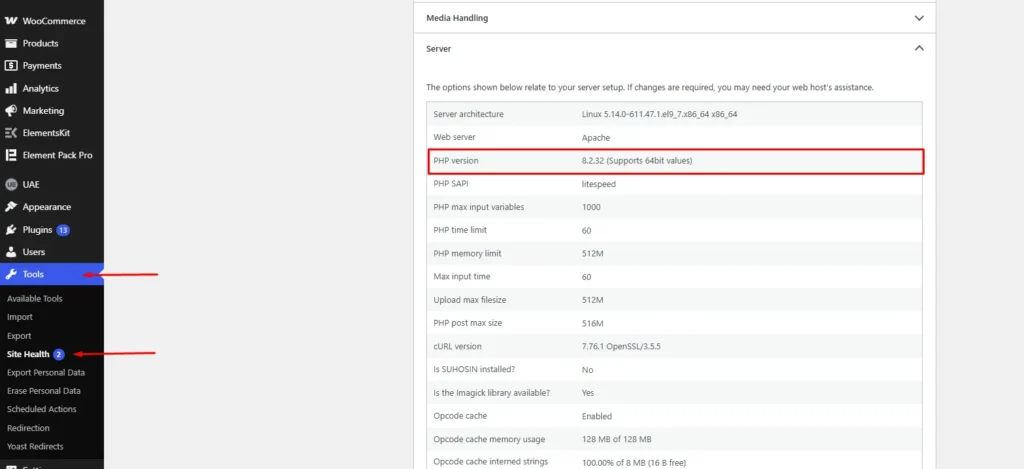
- Log in to the WordPress dashboard.
- Go to Tools → Site Health and check for any PHP-related errors or compatibility warnings.
Troubleshoot if Needed
- If the website shows errors after upgrading, check the WordPress plugins, theme, and PHP error logs.
- If necessary, temporarily switch back to the previous PHP version while troubleshooting.